Sagat
Sagat is a full-stack multisig management platform for Sui multisig wallets. It uses Bun and a TypeScript API for the backend and React for the frontend.
Use the Sagat web interface for signing transactions, analyzing signatures, creating and managing multisigs, accepting or rejecting multisig invitations, and creating, voting on, and executing proposals. Alternatively, use the Sagat SDK to execute these tasks programmatically. To run Sagat on your own infrastructure, self-host it.
What is multisig?
Multisig is a type of authentication that requires multiple signatures from different parties before a transaction can execute. You can invite several addresses to a multisig group. On Sagat, invited parties can accept or reject multisig invitations after the multisig's creation.
Each multisig can have a different voting threshold. For example, in a multisig that contains 3 users, only 2 of the users might need to sign the proposed transaction for approval. In other scenarios, the multisig might require all users to sign the transaction, and if one rejects it, Sagat cancels the proposed transaction. You can assign each member a different approval weight, which is how much their signature counts toward the threshold. This enables endless combinations, such as 5 out of 6 with just 2 addresses.
Learn how to use the TypeScript SDK for multisig.
Risks
Sagat uses Mysten Labs infrastructure for its API layer and frontend layer to store proposal data in order to facilitate multisig management.
Mysten Labs services also host the application's frontend, and you must rely on them to be secure. Always validate a transaction's preview in a secondary location, such as through your wallet, not just from the web interface.
Can I self-host Sagat?
To take control and use Sagat in a trustless manner, you can self-host it. To do so, first download the GitHub repository:
$ git clone https://github.com/MystenLabs/sagat.git
Then, build the SDK and spin up the frontend and the API using the command:
$ bun run dev
Building the SDK is optional, as it can accept a custom URL.
This runs the Bun server in dev mode, so the server reflects all changes as you develop.
How to use the Sagat web interface
Use Sagat web interface to:
-
Create multisigs within the browser. The browser validates each multisig and displays a real-time preview.
-
Accept or reject invitations to participate in multisig compositions.
-
Propose new transactions.
-
Preview and sign transactions.
-
Share transactions through links.
-
Add external proposers outside of the existing multisig group.
-
Execute transactions once they reach the voting threshold.
You can also execute each of these tasks programmatically.
A typical end-to-end workflow in the web interface is:
- Connect a wallet to register its keys with Sagat.
- Create a multisig with at least 2 registered addresses and an approval threshold.
- Each invited member accepts the invitation to join the multisig.
- Create a proposal for a transaction.
- Multisig members vote on the proposal.
- Execute the transaction once it reaches the voting threshold.
Connecting a wallet
First, connect a wallet, such as Slush or Suilet, to the Sagat web interface:

Sagat supports any address that uses ed25519, secp256r1, or secp256k1. Sagat does not support zkLogin.
Connecting a wallet to the Sagat web interface registers the wallet's keys with the service. Multisigs can only contain keys registered with Sagat. You can also register keys programmatically.
The message No wallets found. Install a wallet (ex. Slush Wallet) to continue. indicates that you must install the Slush extension before continuing.
Unlock your wallet and approve the initial transaction. The Sagat web interface prompts you to generate a second transaction used to authenticate your wallet, as this helps with confidentiality.
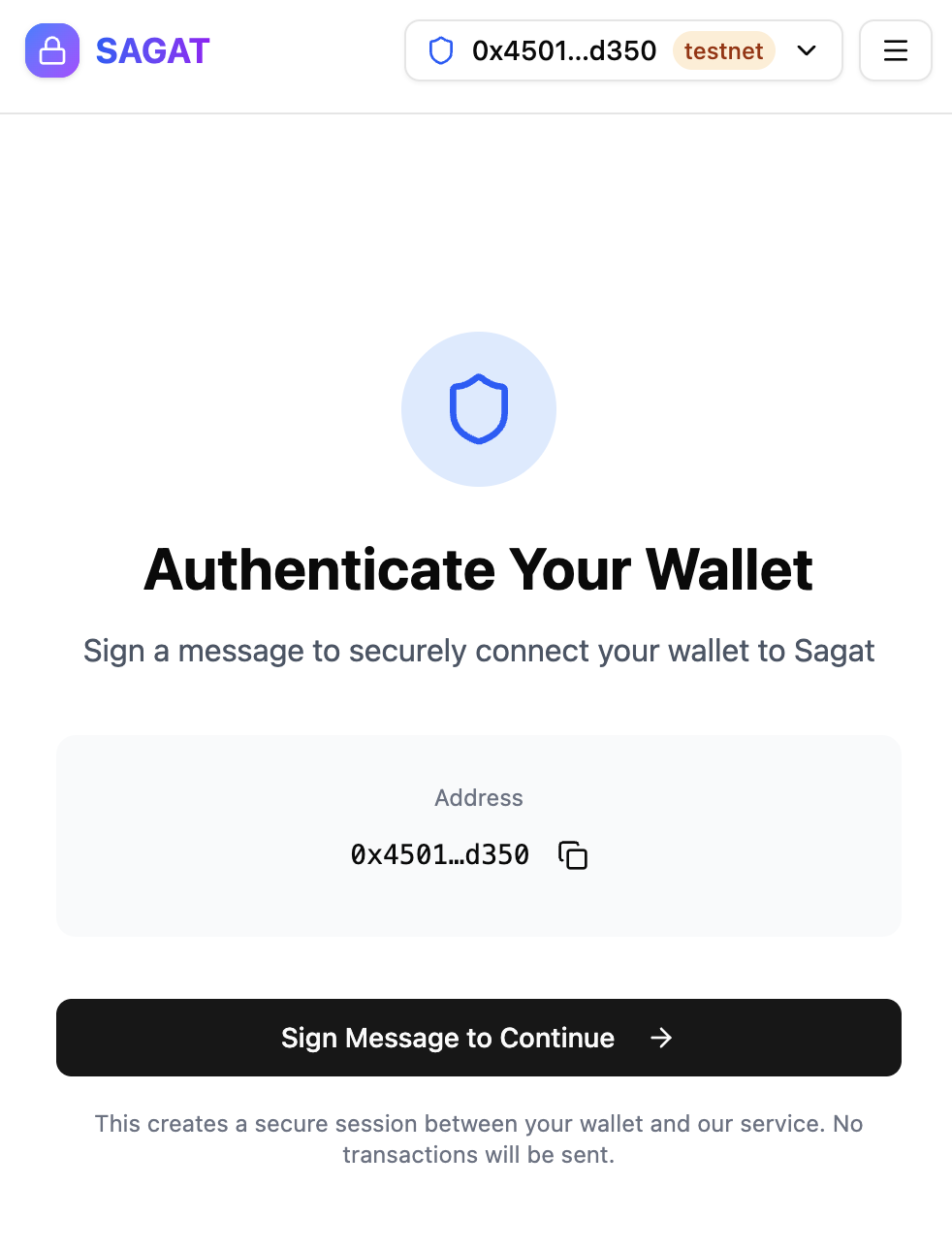
Follow the steps in your wallet to sign and approve the transaction, then verify account ownership.
Testnet versus Mainnet
In the account drop-down menu, there is a toggle option for Test Mode. Test mode toggles connection to Testnet when turned on and connection to Mainnet when turned off.
Use Testnet for testing and debugging, as signing and submitting transactions use Testnet SUI tokens that have no fiat equivalent value. Signing and submitting transactions to Mainnet costs real SUI tokens that have a fiat equivalent value.
Creating and managing multisig
A multisig is a group of users who must vote on and approve transactions before execution. To create and execute multisig transactions, you must first create a multisig.
Click Create Your First Multisig.
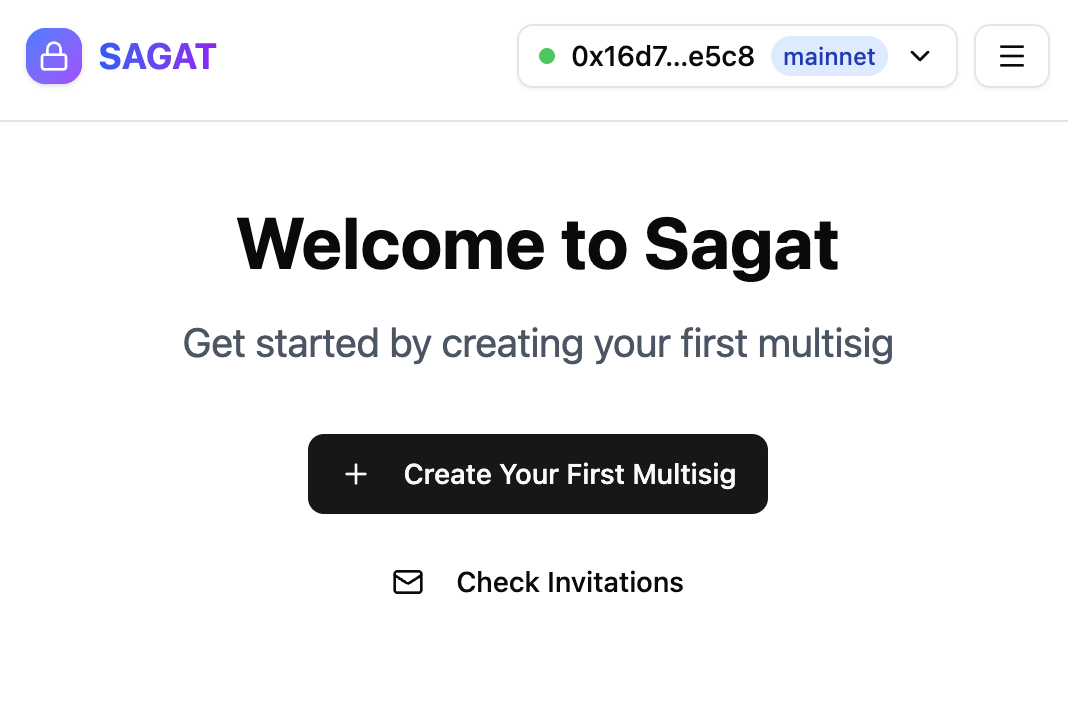
To create a multisig, you must add at least 2 addresses and set the approval threshold.
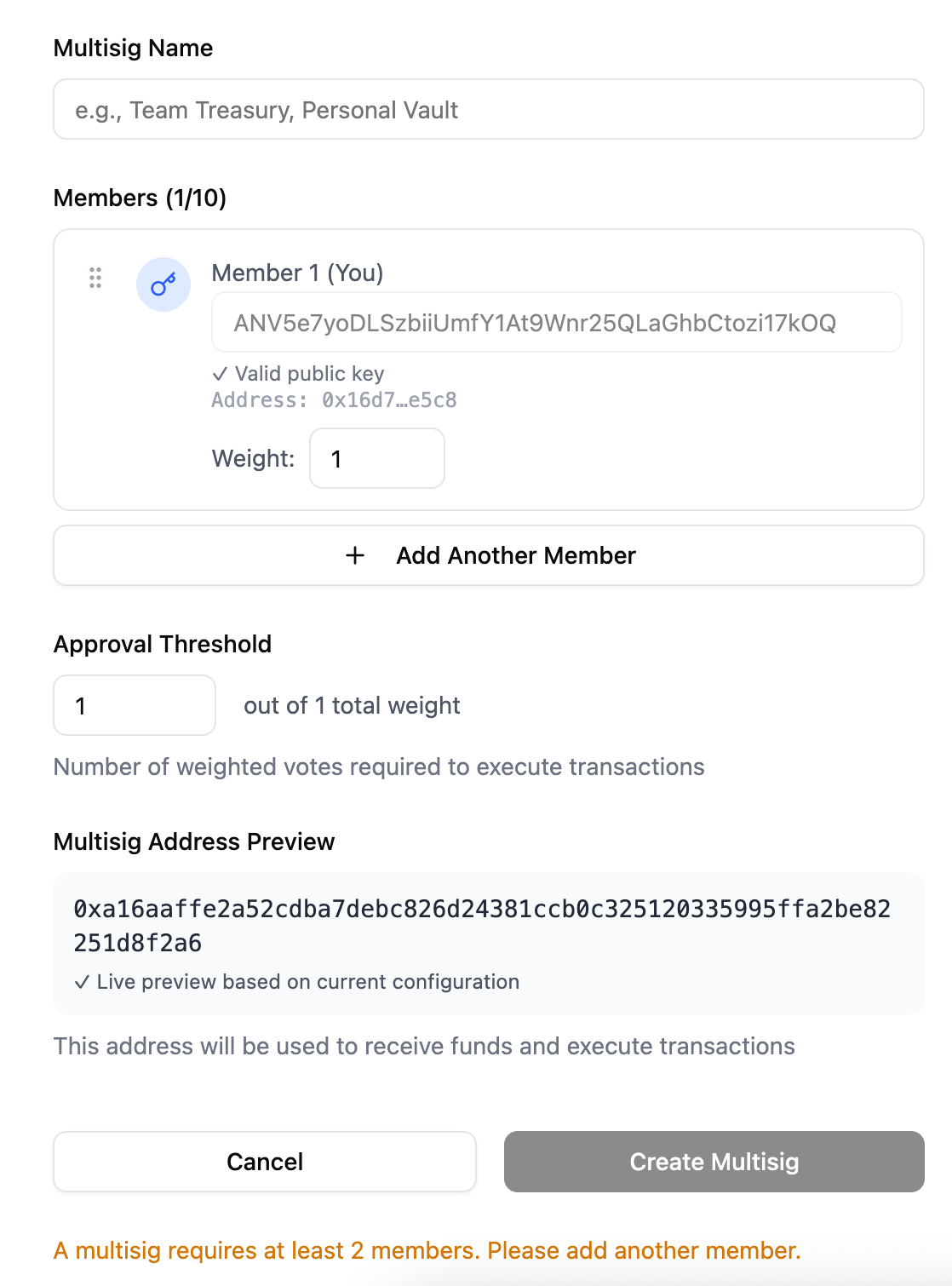
To add another member, click Add Another Member, then add their public key and configure their approval weight.
If you do not know a user's public key, you can click the magnifying glass:
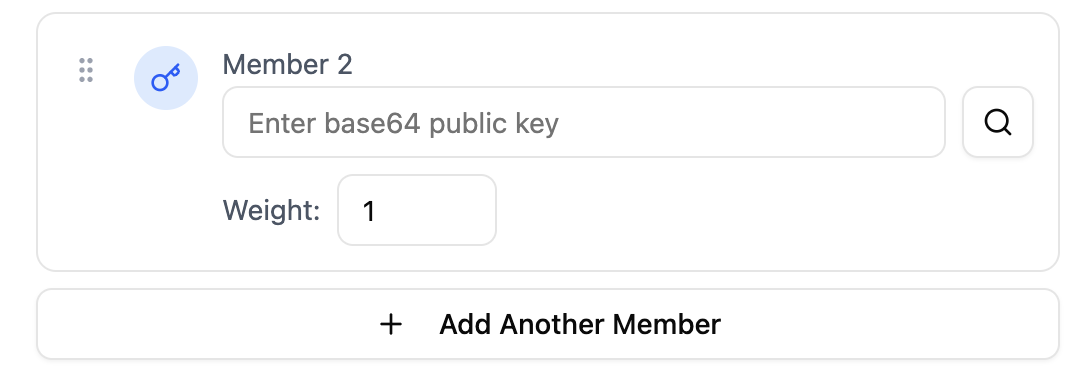
Then enter their Sui address. Sagat returns the address's public key.
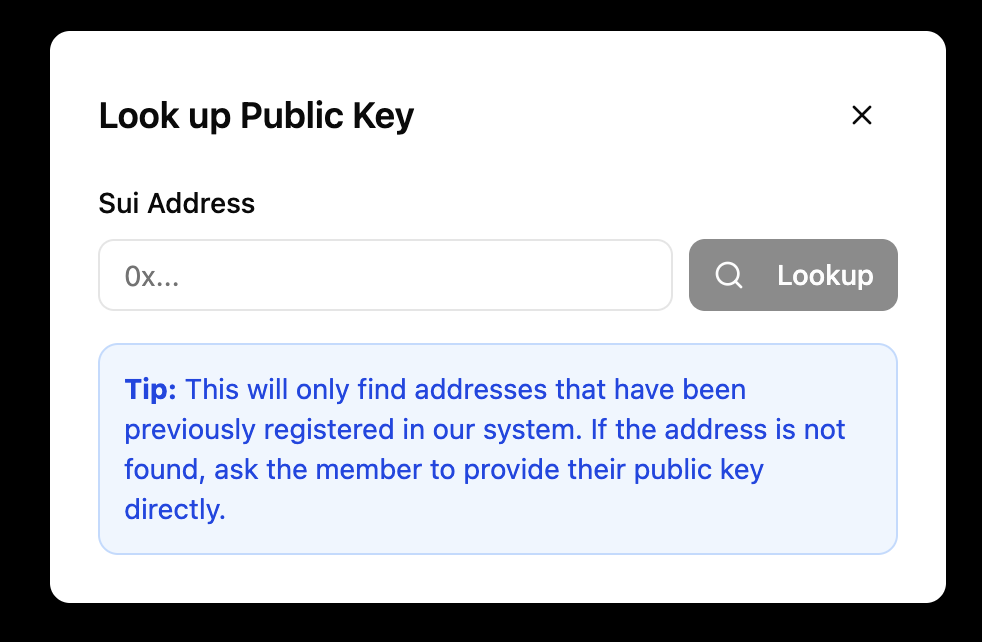
An address must register with Sagat before you can invite it to a multisig.
Sagat displays the multisig preview before you create it.
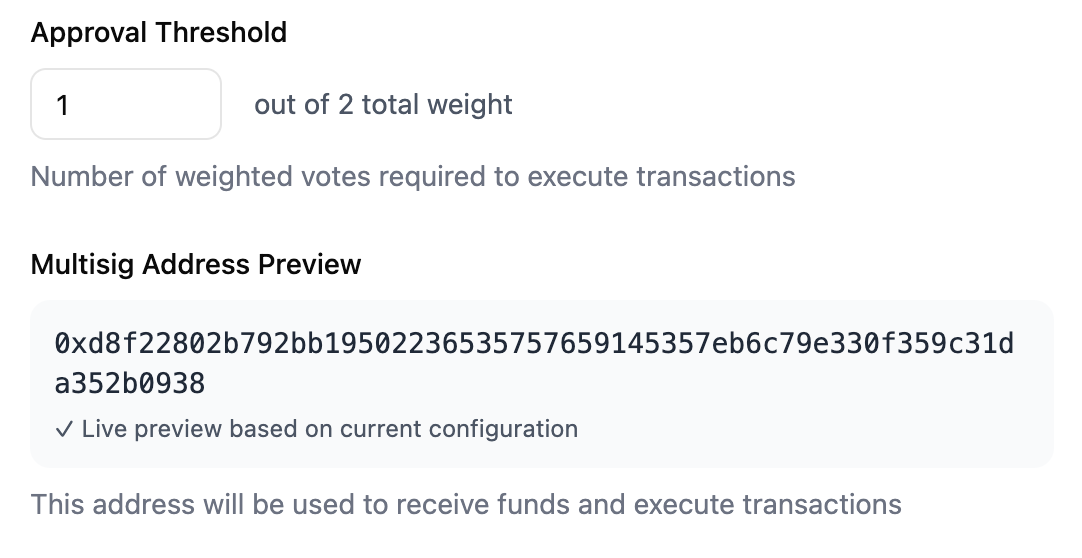
Multisig invitations
After you create a multisig, the added addresses receive an invitation to join the multisig. You can see pending invitations in the Invitations tab.

Create and submit proposals
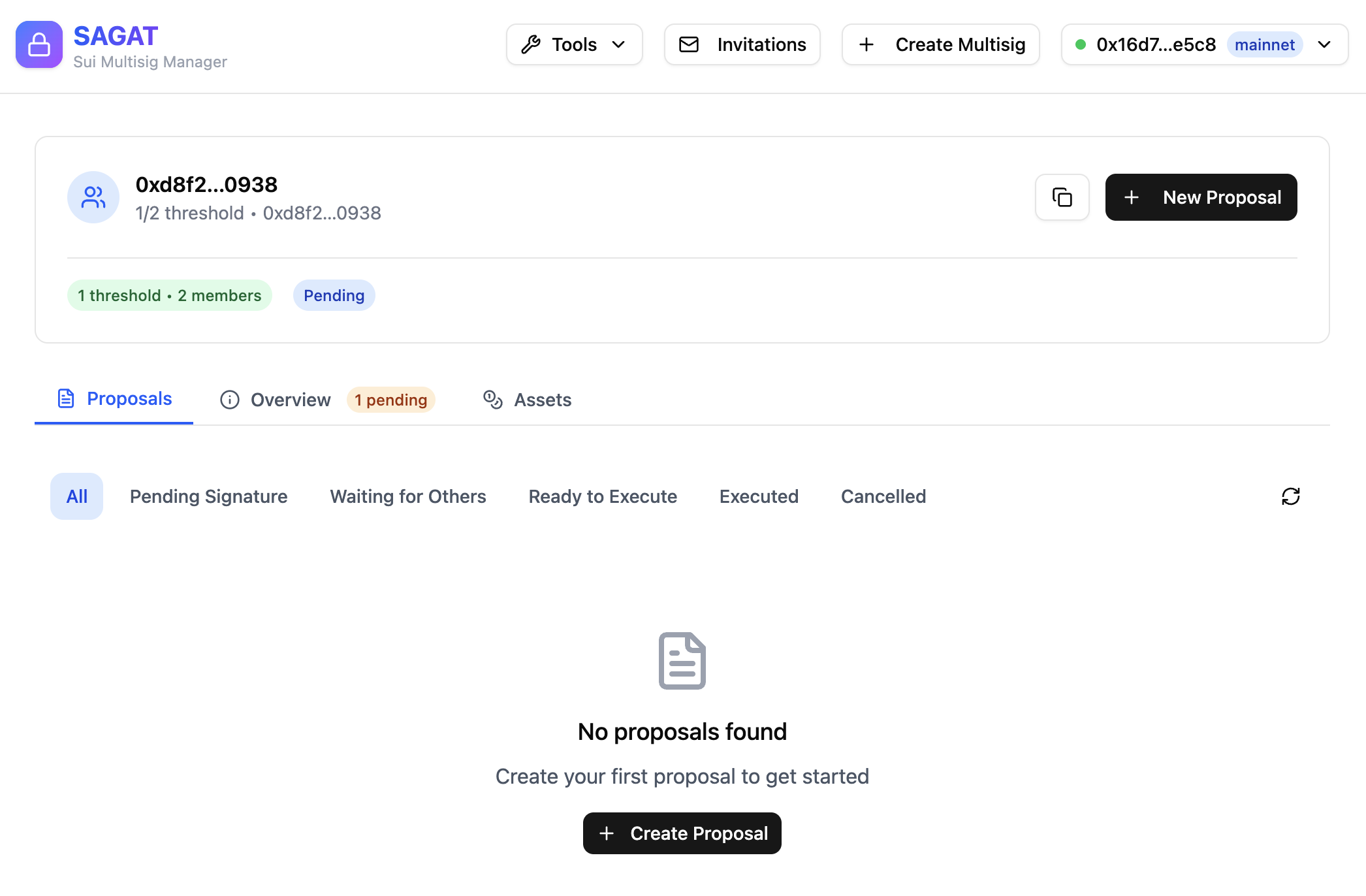
From the Sagat dashboard, you can see several details and options regarding proposals, including:
-
A button to create a new proposal
-
All submitted, pending, and executed proposals, sorted by status
-
An overview of the multisig, its members, and its external proposers
-
An overview of the assets the multisig owns
Only multisig members can query proposals from the API.
Add external proposers
External proposers can create proposals for a multisig without joining the multisig. External proposers cannot approve or execute transactions on behalf of the multisig.
To add external proposers, click the Overview tab, scroll down to Proposers, and click Add Proposer.

Analyze signatures
The signature analyzer tool analyzes and decodes base64-encoded signatures. It supports both multisig and single signature schemes.
Insert the signature into the input box. The tool returns the decoded signature and its details:
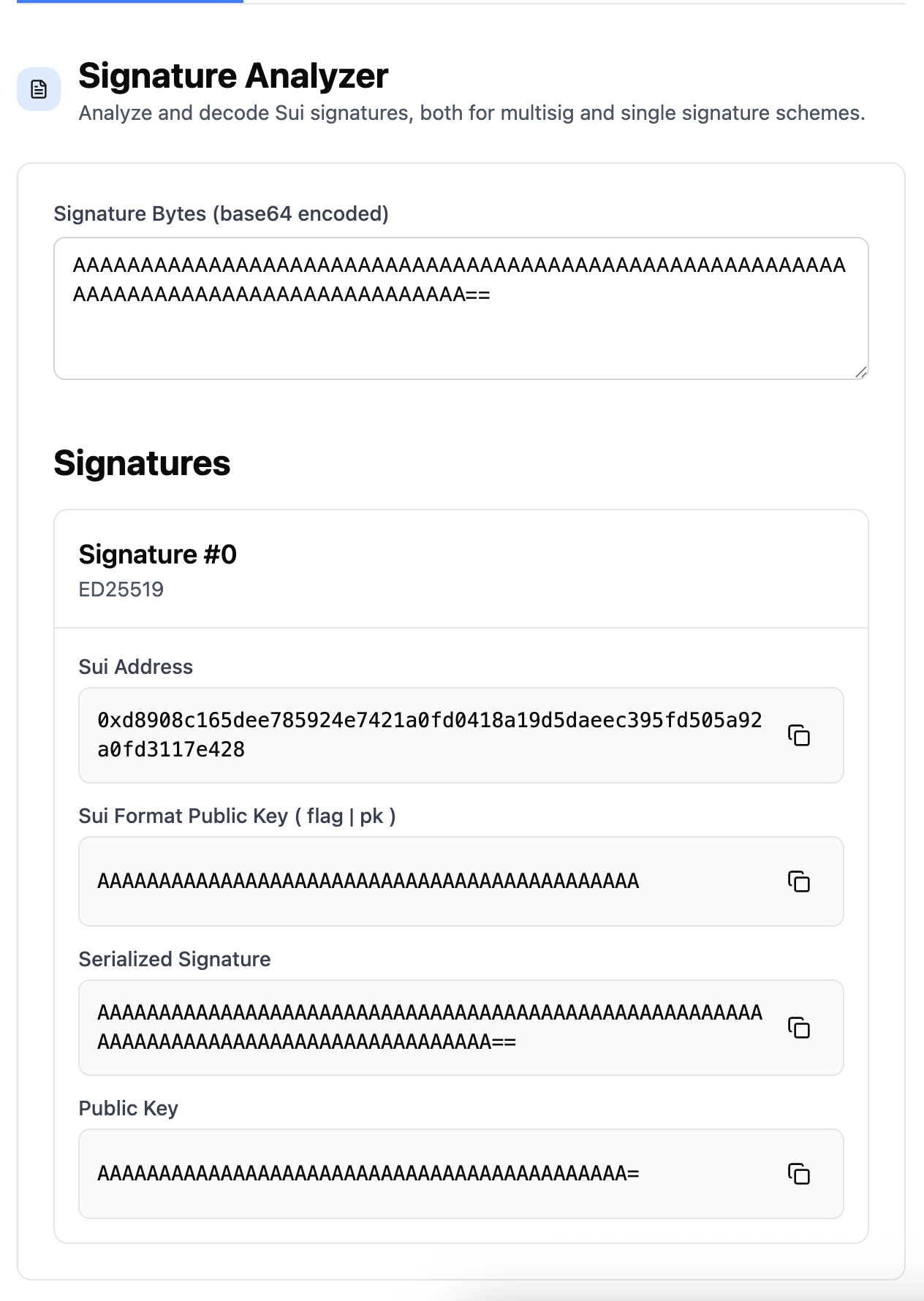
You can get a transaction's signature through network explorers like SuiScan by viewing a transaction's details and looking at the User signature metadata field.
If you enable Test Mode in the Sagat web interface, you can only use signatures for transactions on Testnet. For Mainnet transactions, disable Test mode in the account drop-down menu on Sagat.
Sign transactions
Use the transaction signer tool to preview and sign transactions with the Slush wallet you connected to the web interface.
Insert the transaction data as raw JSON or base64. The tool returns a preview of the transaction before providing an option to sign it.
If you enable Test Mode in the Sagat web interface, you can preview or sign transactions for Testnet. For Mainnet transactions, disable Test mode in the account drop-down menu on Sagat.
Using Sagat programmatically
You can use Sagat through a TypeScript SDK or the Sagat API to execute the same tasks the web browser supports. The examples in this section are test scenarios from the Sagat API. Most examples link to the equivalent method in the Sagat TypeScript SDK.
Register public keys
Register your address with Sagat before creating multisigs:
api/test/addresses.test.ts. You probably need to run `pnpm prebuild` and restart the site.Register multiple addresses with Sagat in the same session before creating multisigs:
api/test/addresses.test.ts. You probably need to run `pnpm prebuild` and restart the site.Learn how to execute this task using the Sagat TypeScript SDK.
Creating and managing multisig
A multisig is a group of users who must vote on and approve transactions before execution. To create and execute multisig transactions, you must first create a multisig. If a proposed transaction does not receive majority approval from multisig members, Sagat cancels the transaction.
For example, create and verify a 2-of-2 multisig:
api/test/multisig-api.test.ts. You probably need to run `pnpm prebuild` and restart the site.A 2-of-2 multisig means there are 2 users who are part of the multisig and both users must approve of a proposed transaction. Learn how to execute this task using the Sagat TypeScript SDK.
You can also create a multisig with a custom name:
api/test/multisig.test.ts. You probably need to run `pnpm prebuild` and restart the site.You can view multisig details about a specific address:
api/test/addresses.test.ts. You probably need to run `pnpm prebuild` and restart the site.Learn how to execute this task using the Sagat TypeScript SDK. You can also look up public key information for a registered address.
Manage the addresses that can create proposals for the multisig:
api/test/proposal-business-logic.test.ts. You probably need to run `pnpm prebuild` and restart the site.Learn how to execute this task using the Sagat TypeScript SDK.
Multisig invitations
Multisigs are not valid until all members invited to the multisig accept or reject the invitation to join. When you create a multisig, Sagat auto-registers all member public keys.
View and accept pending multisig invitations for a public key:
api/test/multisig.test.ts. You probably need to run `pnpm prebuild` and restart the site.Learn how to view invitations using the Sagat TypeScript SDK, or learn how to accept invitations with the SDK. You can also reject an invitation.
Proposal creation
Before a multisig executes a transaction, someone must first propose it. The members of that multisig must vote on the proposed transaction and the configured majority must agree to execute the transaction.
Only verified multisig members can create and vote on proposals. Each multisig member can vote once. A proposal must reach a certain voting threshold before execution. Before a proposal executes, the user who created it can cancel it.
api/test/proposal-business-logic.test.ts. You probably need to run `pnpm prebuild` and restart the site.You must verify a transaction's signature before you can create a proposal. Learn how to execute this task using the Sagat TypeScript SDK.
Viewing proposals
You can browse proposals for a multisig with filtering by status and pagination:
api/test/proposal-business-logic.test.ts. You probably need to run `pnpm prebuild` and restart the site.Learn how to execute this task using the Sagat TypeScript SDK.
You can view a proposal by its transaction digest:
api/test/proposal-business-logic.test.ts. You probably need to run `pnpm prebuild` and restart the site.Learn how to execute this task using the Sagat TypeScript SDK.
Voting on proposals
Users approve or reject a transaction by voting on the proposal to either accept or reject:
api/test/multisig-api.test.ts. You probably need to run `pnpm prebuild` and restart the site.Learn how to execute this task using the Sagat TypeScript SDK. Verify a proposal using its ID number or the transaction's digest.